 nudgeTab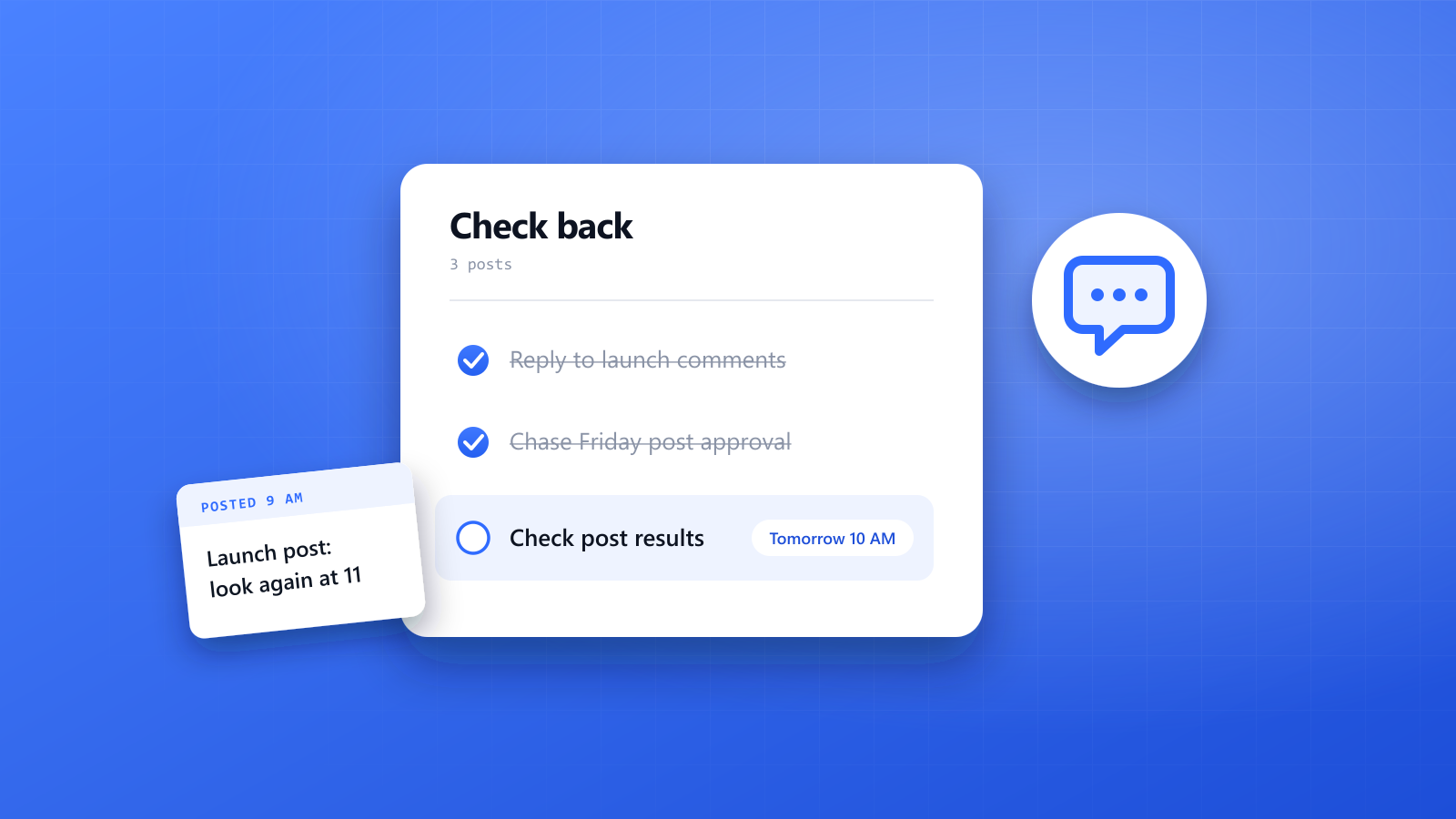
Publishing the post is the easy part. The hard part of managing social media is everything that comes after it, and around it: the comments you need to answer, the approval you're still waiting on, the results you promised to report, the trend you wanted to try before it fades.
None of these are big tasks. That's the problem. Each one is a small "I'll check back on that" attached to a different page, and by mid-afternoon you're carrying twenty of them in your head across three accounts and a dozen tabs.
This guide is about that part of the job: how to keep track of everything you need to come back to, without living in your notifications.
Why social media work is so easy to lose track of
Most jobs have a few big deadlines. Social media has hundreds of small ones, and almost none of them are written down anywhere.
- The work is spread across pages. Each platform, each account, each scheduling and analytics tool has its own tab and its own inbox.
- Most tasks are delayed. You can't check a post's results when you publish it. You have to come back in an hour, a day, a week.
- Other people set the pace. Clients approve late, followers comment at midnight, and a trend peaks whenever it wants to.
- Notifications don't help. They tell you something happened, all at once and in no order. They don't tell you what you decided to do about it, or when.
Remembering to do something later, with nothing to prompt you, is the kind of memory people are worst at. We explained why in why you forget to do things. A social media manager's day is made almost entirely of that kind of task.
The "check back" tasks that pile up
It helps to see them as a few repeating types. Each one has a natural moment to come back to it.
| Task | When to come back | What goes wrong without a prompt |
|---|---|---|
| Replying to comments and messages | Shortly after posting, then again later that day | Early comments sit unanswered while you work on the next post |
| Checking a post's results | After a day, and again after a week | You only look when the report is due, with no time to act |
| Chasing a client or manager approval | A day or two before the planned publish date | The post misses its slot, or goes out unapproved |
| Reviewing a paid campaign | At set points during the run | Budget is spent before anyone notices it isn't working |
| Following up with a creator or partner | A few days after your last message | The collaboration quietly stalls |
| Saving an idea or trend | Your next planning session | The link is lost, or the moment has passed |
| Monthly reporting | A few days before it's due | Numbers are pulled in a rush on the last morning |
A simple system that works
You don't need a bigger content calendar. The calendar covers what goes out. This covers what comes back.
1. Decide the check-back time when you publish
The moment a post goes live, decide when you'll look at it again, and set that time. "I'll check how it did" never happens. "Tomorrow at 10, look at the launch post" does.
2. Give comments a window, not your whole day
Answering every notification as it arrives breaks up the whole day. Pick two or three short windows to reply, such as one soon after posting and one late afternoon, and stay out of the inbox in between.
3. Treat approvals as your follow-up, not theirs
When you send a draft for approval, set a time to chase it. Work backward from the publish date, so there's still room to make changes. Waiting to see whether they reply is how posts miss their slot.
4. Keep ideas with their link and a date
A saved post or an open tab is storage, not a plan. For any idea worth keeping, keep the link and attach it to your next planning session, so it turns up when you're actually deciding what to make.
5. Put the recurring work on a rhythm
Reporting, checking each account's inbox and reviewing the calendar happen on a cycle. Fix a day and time for each one, so they stop depending on you noticing that it's the end of the month.
Doing it with nudgeTab
nudgeTab is a reminder app with a Chrome extension, and it fits this kind of work for one reason: a reminder is tied to the page you set it on. It doesn't publish, schedule or measure anything for you. It brings the right page back to you at the time you chose.
Here's how that looks for the tasks above:
- On the post you just published, click the nudgeTab extension, type "Check results and reply to comments", and pick tomorrow at 10 a.m. The page's title and link are saved with the reminder.
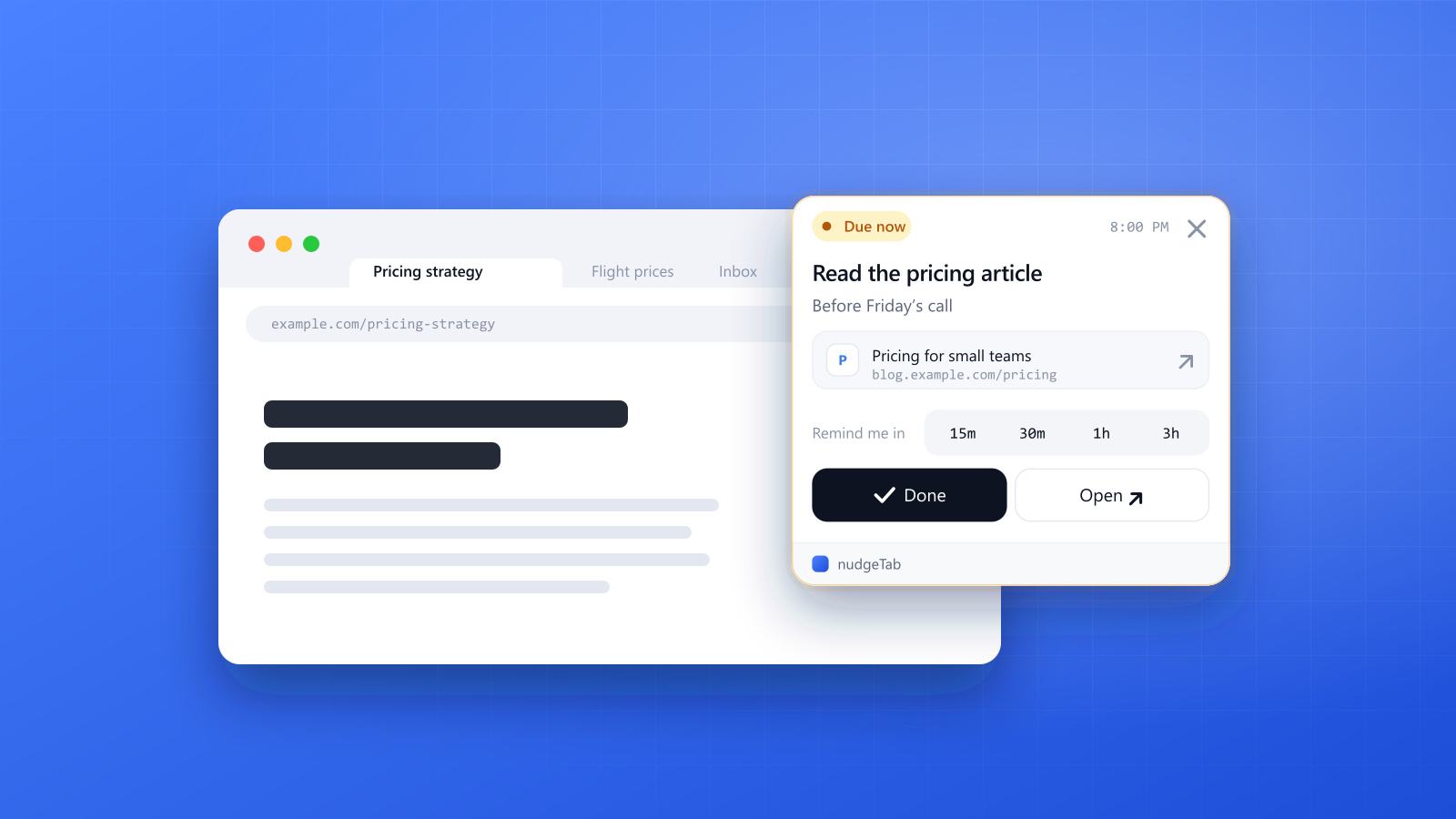
- When the time comes, the reminder appears on top of whatever tab you're working in, and stays there until you deal with it.
- Click Open to go straight back to the post. Hit Done when you've finished, or snooze it for 15 minutes, 30 minutes, 1 hour or 3 hours if you're in the middle of something.
The same three steps work on an approval thread ("Chase sign-off for Friday's post"), on a campaign's dashboard ("Review spend at the halfway point"), or on a post you want to learn from ("Bring to Monday planning").
A few practical notes:
- Use the note field for the "why". "Client asked about saves, not likes" is what you'll need in a week, and the page title won't tell you.
- Everything is in one list. Your reminders also show in the nudgeTab dashboard, whichever account or tool they came from.
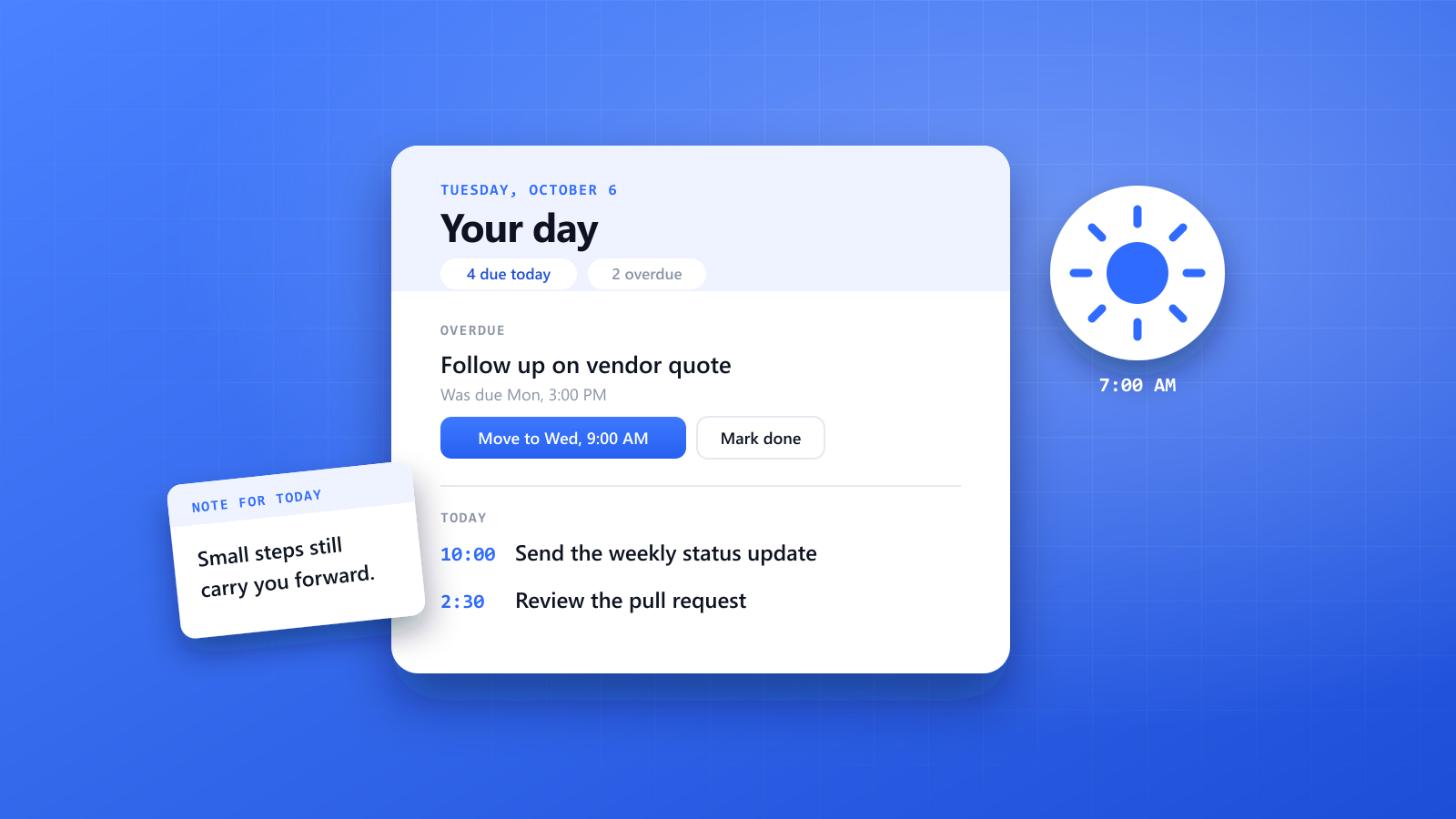
- The Free plan holds up to 10 reminders, which is enough to try this with your current posts. Pro removes the limit and adds recurring reminders (daily, weekly or monthly), which suit reporting and regular inbox checks, plus email and push notifications and a daily email digest of what's due.
How it fits different kinds of social media work
| Who you are | What tends to slip | What helps |
|---|---|---|
| In-house social media manager | Reports and internal approvals | A recurring reporting slot, and a chaser set when each draft is sent |
| Agency manager with several clients | One client's check-backs buried under another's | A reminder on each client's post or thread, with the client named in the title |
| Freelancer | Approvals and unpaid invoices | A follow-up date set every time you send something |
| Community manager | Conversations that need a second reply | A reminder on the thread itself, for when the answer is ready |
| Small business owner doing it yourself | Everything after the post goes out | One check-back per post, in a quiet part of your day |
| Content creator | Brand deal deadlines and partner replies | A reminder on each brief, a few days before it's due |
An agency manager on launch day
A client's product launch goes live at 9 a.m. On the post, a reminder is set for 11 a.m. to answer early comments, and another for the next morning to pull first-day numbers. On the approval thread for Thursday's follow-up post, a third is set for Wednesday at noon. The rest of the day goes to another client, and each of those three pages comes back at its own time.
A freelancer waiting on approval
Next week's posts were sent to the client on Monday. Instead of hoping for a reply, a reminder is set on the thread for Wednesday morning. When it appears, the chaser takes two minutes, and there are still two days to make changes before the first post is due.
The takeaway
Being organized in social media isn't about a more detailed calendar. It's about not losing the small promises you make to yourself all day: check that post, chase that approval, come back to that idea.
Give each one a time and keep it attached to its page. Try it on the next thing you publish: set one nudgeTab reminder on the post for tomorrow, and see how it feels to stop carrying it around.