 nudgeTab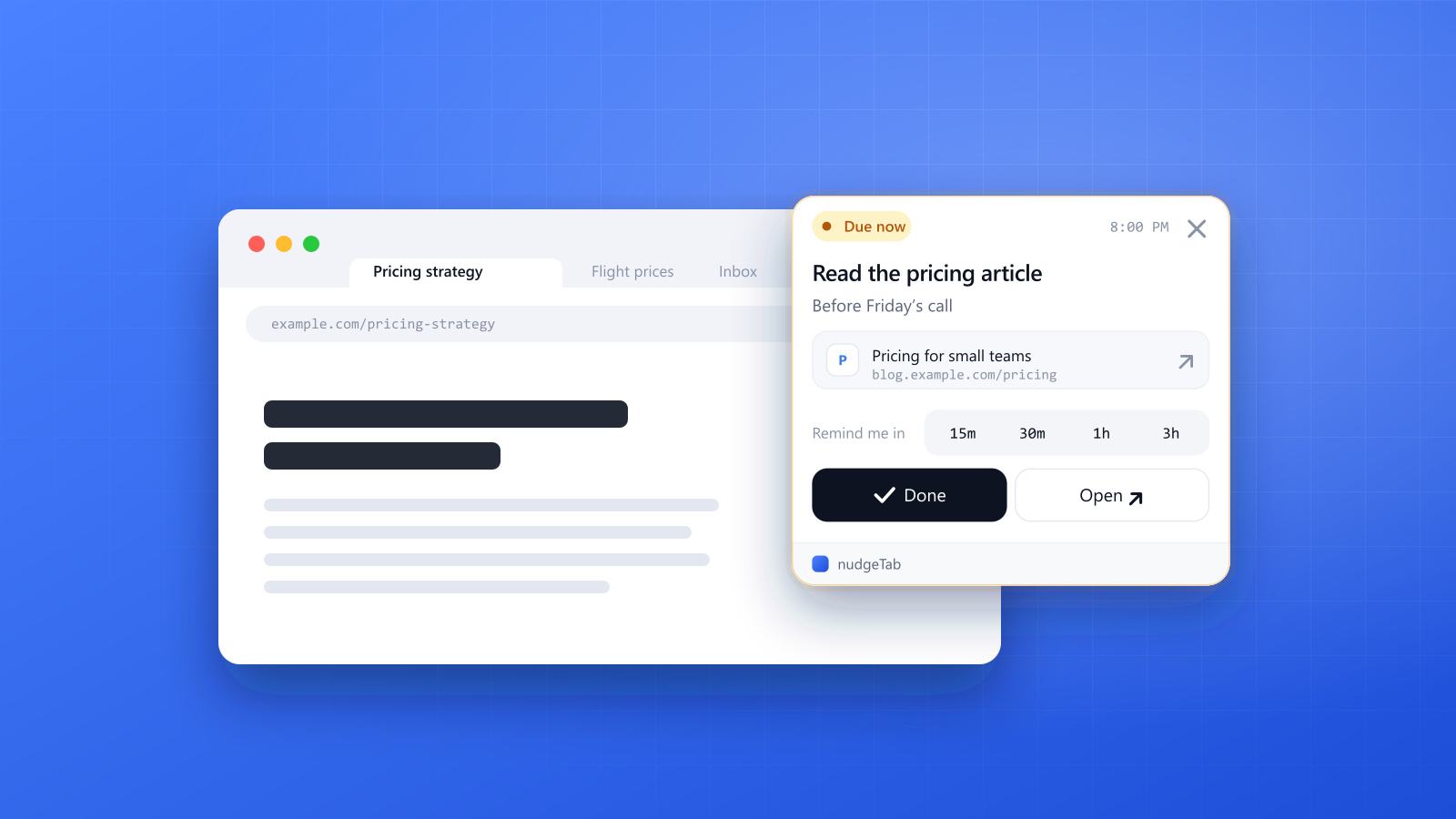
You find a great article at the worst possible moment. You're mid-task, so you tell yourself "I'll read this later" and do something with the page: leave the tab open, bookmark it, or send the link to yourself.
Days later you have forty open tabs, a bookmarks folder you never open, and an article you can no longer find. The intention was good. The system just wasn't built to bring you back.
This guide explains why "read later" so often becomes "read never," compares the common ways people save things, and shows a simple system that makes you actually come back.
Why "read later" turns into "read never"
Saving a page and scheduling a page are two different things. Almost every method people use only does the first one.
When you bookmark or leave a tab open, you've stored the page, but you haven't decided when you'll read it. Without a time, nothing ever makes "later" arrive. It stays a vague promise, and vague promises lose to whatever is urgent today.
Two more things make it worse:
- Out of sight. A bookmark in a folder gives you no signal. You only see it if you go looking, and you won't go looking for something you forgot about.
- A growing pile. Every unread item is a small, silent debt. The longer the list gets, the less appealing it is to open, so the list grows even faster.
The usual ways to save an article (and where each one breaks)
Every method below is reasonable. The question is what happens after you save the page.
| Method | Good for | Where it breaks |
|---|---|---|
| Leave the tab open | Reading in the next hour | The tab gets lost among dozens of others, and it's easy to close by accident |
| Bookmark it | Keeping something for reference | Nothing reminds you, so it's rarely opened again |
| Read-later app | Keeping a tidy reading queue | You still have to remember to open the app |
| Email or message it to yourself | Moving a link between devices | It sinks under newer messages |
| Calendar event | Setting a real time | It's slow to create, and the link has to be pasted in by hand |
Notice the pattern: the methods that store well don't remind, and the methods that remind are slow to set up. The fix is to combine them, quickly.
A simple system that works
You don't need a new app or a big routine. You need four small habits.
- Decide in ten seconds. When you find an article, choose one of three: read it now, skip it, or read it later. Most things should be "skip." If it isn't worth ten minutes of your time, don't save it.
- Pick a specific time. For "later" items, choose the real moment you'll have time, such as "tonight after dinner" or "Friday afternoon." A time you chose beats the word "later."
- Attach the link to that time. Save the article and the time together, so when the moment comes, the page is one click away.
- Allow yourself to let go. If you've snoozed an article twice, it's telling you something. Delete it without guilt.
Do a quick sweep once a week: skim what's left, open the two best, and remove the rest. That keeps the pile from growing back.
How different jobs use read-later
Plenty of people save articles because it's part of the job, not just curiosity. The pile looks different depending on your work, and so does the best time to clear it.
| Role | What they save | A good reading slot |
|---|---|---|
| Project managers | Methods, templates, case studies | Start of the week, before planning |
| Teachers | Lesson ideas, classroom research, resources for students | A free period, or a set time on the weekend |
| Software developers | Documentation, release notes, tutorials | Before starting a related task, or after a deploy |
| Marketers | Competitor news, industry reports, campaign examples | A weekly "market scan" block |
| Researchers and students | Papers, sources, reading lists | A fixed daily reading hour |
| Sales and customer success | News about their accounts and industry | Ten minutes before a call |
| Journalists and writers | Background reading and sources | When drafting the related piece |
| Healthcare professionals | Journal articles and guideline updates | A protected slot outside patient hours |
The pattern is the same everywhere: if reading is part of your work, treat it like a meeting. It gets a time, and that time shows up in your day.
Doing it with nudgeTab
nudgeTab is built for exactly this, because the reminder is tied to the page itself. Here's the flow:
- On the article you want to read later, click the nudgeTab extension.
- Give the reminder a title and an optional note, then pick when you want to be nudged. The page's title and URL are captured for you, so there's nothing to copy and paste.
- When the time arrives, the reminder appears on whatever tab you're using, and stays there until you deal with it.
- Click Open to jump to the article, then hit Done when you've read it, or snooze the reminder (15 minutes to 3 hours) if the moment isn't right.
That covers both halves: the link is saved with the reminder, and the reminder finds you at the time you picked. You don't have to remember to check a list.
A few ways to use it well:
- Match the article to the moment. Set long reads for an evening or weekend slot, and short ones for a lunch break.
- Write a note on why you saved it. "Use the pricing example in the Friday deck" is much more useful in a week than the headline alone.
- Keep it small. The free plan holds up to 10 reminders. That limit works in your favor: if your reading list is longer than that, you're saving more than you'll ever read.
Quick tips
- Treat the reminder as the plan, not the bookmark.
- If an article is still unread after two snoozes, delete it.
- Reading before bed or on a commute? Choose the time to match, and let the reminder do the rest.
- Batch the leftovers: one Friday session for everything that survived the week.
The takeaway
"Read later" fails because "later" has no time attached. Give every article you care about a specific moment and a way to find its way back to you, and you stop collecting tabs and start reading.
Try it with the next article you want to save: set one reminder, and see whether you actually come back to it.