 nudgeTab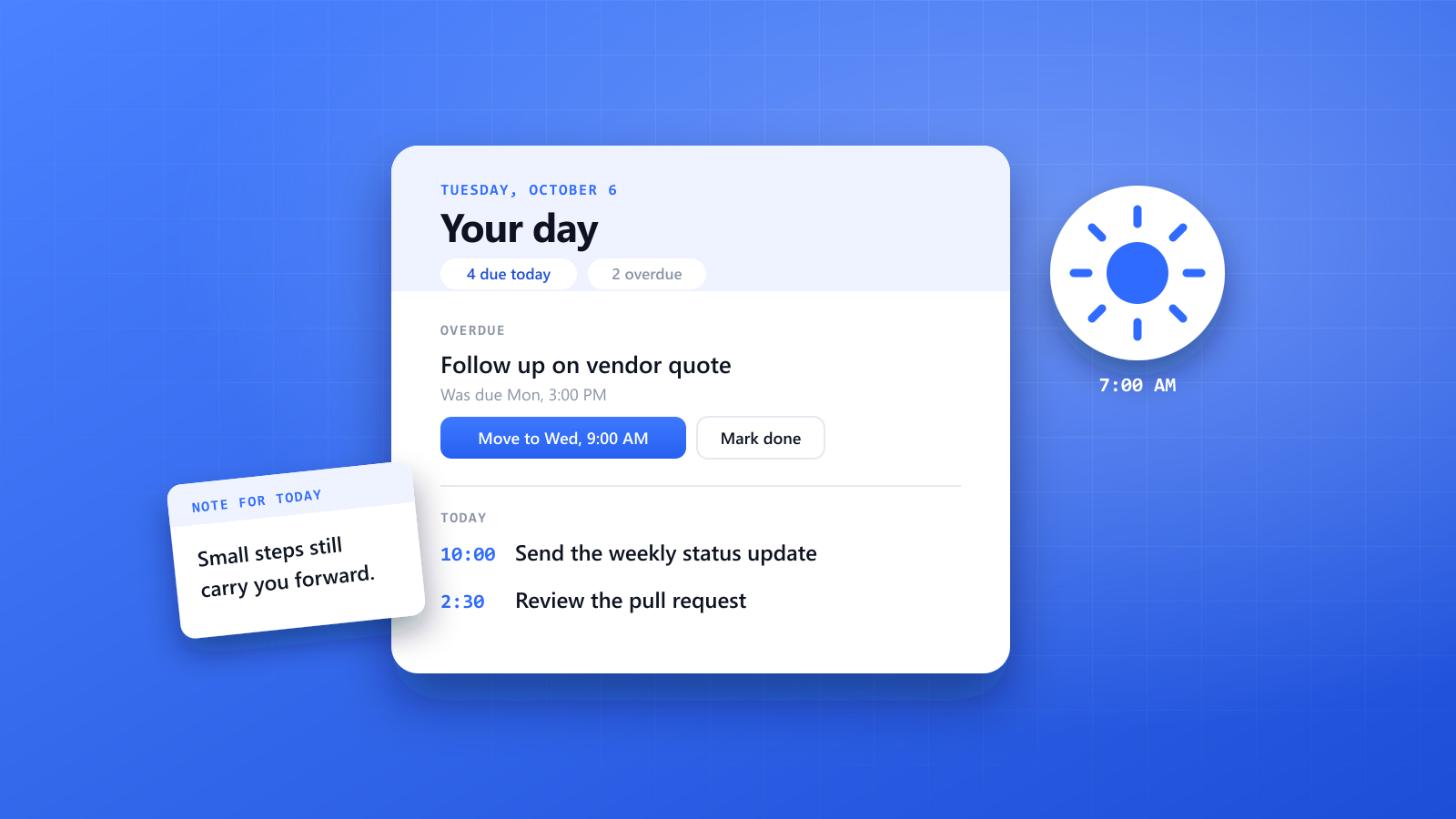
Reminders are good at the moment something is due. They're less good at the bigger picture: what does today actually look like, and what about the things that slipped yesterday?
That's what the new daily digest is for. If you're on nudgeTab Pro, you can now get one short email each morning that sums up your day, puts today's reminders in a sensible order, and suggests what to do with anything that's overdue. Every item has buttons, so you can clear most of it straight from your inbox.
What's in the email
The digest arrives around 7:00 a.m. in your own time zone, with a subject line that tells you the shape of the day before you open it, for example "Your day: 4 reminders · 2 overdue".
Inside, it has four parts:
- A short summary. Two or three sentences about the day: how much is due and anything that's time-sensitive. Under it, two counters show how many reminders are due today and how many are overdue.
- Overdue. Each reminder you missed shows when it was due and a one-line suggestion. Usually that's a new time, with a Move to button for it (for example "Move to Wed, Oct 7, 9:00 AM"). If the moment has clearly passed, such as a one-off event that already happened, the suggestion may be to mark it done instead. Every overdue item also has a Mark done button.
- Today. The rest of today's reminders, each with its time, in the order that makes sense to tackle them, with Done and Snooze 1 day buttons.
- A note for the day. One short, encouraging line to start the morning.
At the bottom are links to open nudgeTab and to manage the digest.
| Section | What you see | Buttons |
|---|---|---|
| Summary | 2-3 sentences, plus counts for "due today" and "overdue" | None |
| Overdue | When it was due, and a suggested next step | Move to (suggested time), Mark done |
| Today | Due time and title, in a suggested order | Done, Snooze 1 day |
| Note | One short line for the day | None |
Each section shows up to 10 reminders. If you have more, an "and N more" link takes you to your dashboard.
How it works
Turning it on
Open Settings in the web app and switch on Email digest. The setting shows the time zone your digest is based on. nudgeTab picks up your time zone from your browser when you use the app, so the email lands in your morning, not someone else's.
The digest is a Pro feature. On the Free plan the setting is shown with an upgrade link.
Only on days with something to do
If nothing is overdue and nothing is due before the end of your day, you don't get an email. The digest only arrives when it has something useful to say, and you get at most one per day.
The buttons work without signing in
The buttons in the email are secure one-click links, so you don't need to log in from your inbox:
- Move to reschedules the reminder to the suggested time, and it will remind you again then as usual. If you click it after that time has already passed, nothing changes and you're asked to pick a new time in nudgeTab.
- Done and Mark done complete the reminder.
- Snooze 1 day pushes a reminder for today back by 24 hours from when you click it.
Anything you'd rather handle differently, you can still change in the dashboard or from the extension overlay when the reminder comes up.
What the AI does (and doesn't do)
The summary, the suggested order, the suggested times and the daily note are written by an AI model. To do that it reads your open reminders for the day: titles, a short part of each note, due times and the name of the website each one was set on (just the site, not the full link).
A few safeguards are built in:
- Suggested new times must be in the future and no more than 14 days out. A suggestion that doesn't fit is simply left out.
- The AI's text can't add links, email addresses or phone numbers to the email. If it tries, that text is replaced.
- If the AI is unavailable or its answer isn't usable, you still get your digest: a plain version with a simple summary, your reminders in time order and the same Done, Mark done and Snooze buttons, just without suggestions.
The subject line and the counts are never written by the AI. They come straight from your reminders.
How different jobs can use the digest
A morning overview helps most when your day is made of many small commitments that arrive from different places. Here's how it fits a few common roles.
| Role | What tends to pile up | How the digest helps |
|---|---|---|
| Project managers | Follow-ups, status updates, vendor chasers | Overdue chasers get a new time instead of silently aging |
| Teachers | Grading deadlines, parent replies, forms to sign | See the day's admin before the first class starts |
| Sales and customer success | Follow-up calls, renewals, proposals | Missed follow-ups come back with a suggested slot |
| Software developers | Reviews to revisit, checks after a deploy | Today's checks in order, with one-click Done |
| Accounting and finance | Invoices to chase, month-end tasks | Overdue items are visible first thing, not at 5 p.m. |
| Freelancers | Client replies, invoices, renewals | One email covers every client's due items |
| Researchers and students | Readings, submissions, experiment checks | A short plan for the day, with stale items cleared out |
A project manager on Monday morning
Three follow-ups slipped on Friday: a vendor quote, a design review and a budget sign-off. The digest lists them under Overdue, each with a suggested new time. One click on Move to for each, and the week starts with a plan instead of a guilty list. The two status updates due today sit under Today, in order.
A teacher during report season
The digest shows a reminder to finish grading one class's essays at 4 p.m. and a parent email that was due yesterday. The parent email gets moved to the suggested slot the next morning, the grading reminder stays where it is, and an old reminder about a form that has already been handed in gets marked done straight from the email.
A salesperson after a busy week
Two follow-up calls didn't happen. The digest suggests new times for both, and today's renewal check comes first in the Today list because it's earliest. Nothing goes quiet just because the week got away.
Why a morning overview helps
Forgetting to do something is rarely about not caring. It's usually that nothing brings the task back at the right moment, a problem we covered in why you forget to do things. Individual reminders solve that for each task. A short look at the whole day adds the other half: you see what's coming, deal with what slipped, and start the morning with a list you trust.
Try it
If you're on Pro, open Settings and switch on Email digest. Your first digest arrives the next morning that has something on it. New to nudgeTab? Start with what nudgeTab is and how it works.